I’ve spent the last month creating my first iBook – “Why We Fight: WWII and the Art of Public Persuasion.” It’s in the “approval” process at the iBookstore. (Look for a post when it’s available).
I learned a lot about making multi-touch iBooks the hard way – trial and error. I thought I’d share a few tips for using iBooks Author (IBA). This post is not an IBA step-by-step. It assumes you are already a bit familiar with IBA. Note: I have collected IBA how-to’s at this Scoop-It.
Carefully plan your pages
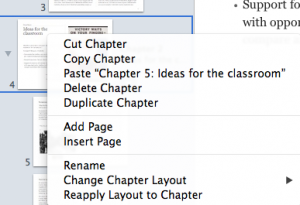
Here’s one big lesson I learned in IBA - you can’t move pages. Chapters and sections of chapters can be easily re-arranged in an iBook. Just highlight them and slide to new location. You can also right click a chapter or section and cut, copy, duplicate and paste. You can even use those commands to move them between two different IBA projects that you have open. BUT moving pages is not allowed. I should note that my book had very little text and loads of graphics and widgets. So, for example, if I wanted my current page 10 to become page 5, I had to recreate pages 6-9 as part of the process. Lesson learned – plan ahead! (This is not a problem if you have a largely text oriented iBook. You could easily cut the text from page 10 and insert it into into a place in the flowing text that would put it at page 5.)
Size matters
File size that is. I planned a multimedia-rich look at the US propaganda effort in WWII. Lots of videos, audios and poster art meant that my iBook file was quickly becoming too large. I used video files from Archive.org that that were in mp4 format. IBA only accepts m4v format and it’s very picky about the types of m4v it accepts. I tried converting mp4 files using Handbrake (a very popular free app). IBA wouldn’t accept Handbrake converted m4v files. I used QuickTime player to convert by opening the mp4 and using QT File / export, but for some reason QT greatly increases file size when exporting.
My final solution to growing file size was three fold. One – I invested in Apple Compressor to convert mp4 to m4v and compress file size. Two – I used iMovie to edit some to the movies to tighten them up. Three – My planned iBook eventually got split into 3 iBooks of smaller file size. One other solution you could use would be to not put the video file in the iBook, but to link to it on YouTube via an embedded widget. (You can easily create a widget for that at a free site – Class Widgets).
Who wrote my iBook?
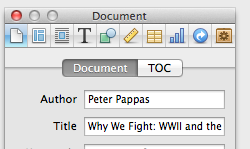
IBA allows you to preview your iBook by connecting an iPad and choosing File / Preview. It gives you the choice to either preview the entire book on your iPad or just preview the section you are working on. For the longest time, when I previewed my iBook it would appear on my iPad as “Author Unknown.” Finally, I figured out I needed to set the title and author in the “Document” section of the Inspector. Lesson learned.
Stylin’

I decided to use frequent stop and think prompts in the book to focus students on reflection. It was also away to reinforce CCSS skills throughout the book in a user friendly manner. I created a yellow post-it style text box and liked the way it looked. One I had the format I wanted I was able to copy and paste using the tool bar icons. BTW - You can also edit / copy and edit / paste widgets. A nice way to move them around.
Don’t mess with chapter image placeholders
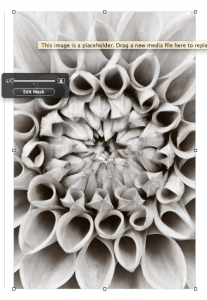
My iBook was loaded with media content, so I used the “Basic” template offered by IBA. One of the first things I did was strip it down to blank white pages. My mistake was revealed when I looked at my iBook in the “Table of Contents” view. I noticed that my chapter start pages lacked the graphics I had put on them. I finally figured it out.
When you create a new chapter you are offered an image place holder on the right side of the page. Don’t delete it like I did. Instead, just drag your image into it. That way the image will appear in the ”Table of Contents” view. Once I deleted the image placeholders there was no way to get them back. You guessed it – I needed to create a “new chapter” and rebuild all the content. Ouch!
Customize layout for your widgets
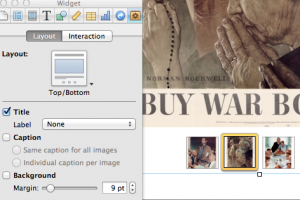
I was going for a very clean minimal look that would showcase the content. So I wanted my widgets to have minimal styling.
To do that - go to Widget in the Inspector panel. Choose “Layout” tab and deselect background. Lots of other options for Label and Caption. You can also show thumbnails (as I did on the left) by selecting them in the “Interaction” tab.
Sneaking up on hyperlinks and bookmarks
You can hyperlink from the iBook to external links or create Bookmarks to jump between content within your iBook. Use the Inspector to create them. Here’s a few tips. You can only hyperlink from text. No image hyperlinks. You can hyperlink from any body text or text within inserted text boxes to URLs outside your iBook. Be sure to copy / paste you new URL into the Inspector or you’ll be creating a hyperlink to Apple.
Bookmarks are a bit fussier. First you need to turn some text in your iBook into a bookmark using the Inspector - select the text and click on the + sign to add new bookmark. Here’s the catch – you can only create a bookmark from body text – you cannot bookmark text in a text box. Once you have anchored a bookmark you select some other text in your iBook and use Inspector to hyperlink to your bookmark.
Working with hyperlinks after you create them is a bit quirky. If you click on a previously created hyperlink in your iBook, it work. In other words you’ll leave the iBook and go to the URL in Safari. So you have to “sneak up” on hyperlinks. Click your cursor into adjacent text and use your keyboard arrows to navigate into the hyperlinked text. It will go active and you can use the Inspector to make changes.
Where’s the Find and Replace?
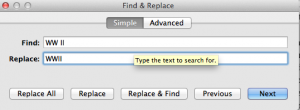
IBA has a some good editing tools. You can use Edit / Proofreading to get to a reasonable proofreading panel. I found it useful. Looking for the find and replace feature? Use keyboard Command – F.

Hi Peter,
Been enjoying your progress reports. This post solved a mystery that has been driving me nuts re. the missing chapter graphics. One of my chapters was not displaying the opening photo and I could not figure out why. Of course it had to be the longest chapter in the book…
Many thanks and good luck with your ibook.
Frank
Frank,
Glad to hear that helps. It baffled me for the longest time as well.
~ Cheers, Peter
Armed with your advice, I managed to get my chapter opener to show in the table of contents. Luckily, I had left the original opening spread template alone and monkeyed around with a duplicate, retweaked version. So this morning, I simply applied the original chapter spread template to that page and then added the required elements. The chapter’s picture now appears where it should in TOC view.
Guess the lesson here is that you shouldn’t delete those templates completely. Just duplicate them and make your changes to the dupes.
Glad to hear that – and you offer a great workflow for handling chapter images.
Peter: Thanks for the tips. I am working on an educational tool for the operating room to improve surgical outcomes. Lots of our material is in PDF format. Any tricks there? I was hoping there might be a consultant to help build our first “iPad for the OR” application. We are in the Bay Area. Do you have Apple contacts that are subject matter experts?
Thanks, Bruce
Peter,
I forgot to write back to say that my iBook — Everest: High Expectations — was released in late November and worked out really well. I was really impressed by iBA and rendered nine early-reader kids books into the format too.
Check them out via the links at my website if you get a chance.
Happy New Year.
Frank,
I checked out your books and they are beautiful! Here’s a link for readers. http://bungalobooks.com/featured-books/everest-high-expectations/
best,
Peter
Hi Bruce,
I don’t know any consultants in your area.
But PDFs can be converted to be used in an iBook. I’ve been doing that with my latest project. Turning old WWII era pamphlets into scrollable iBook pages. If you had any video or audio to add – all the better.
If you’d like to discuss further, comment here and we can arrange to connect elsewhere.
Cheers,
Peter
Bruce,
I would also add the “The Bookry” is now offering a free widget that allows you to embed PDF documents into iBooks Author. Might be what you need for your project.
https://www.bookry.com/author/widget/library/pdfviewer/
Peter
Hi. This web site, logging your efforts is amazing. I have bought and read “ibooks Author for Dummies” which was a good starting point, but this site adds so much more. Thank you.
I am only in the throws of starting a personal history book for my children but already have come unstuck. The graphics are missing, but the info on this site has resolved (i hope) the issue.
I have only prepared about 20 pages so far. One thing I have noticed is that I cannot increase the font size when viewing on my iPad. Pinching and spreading my thumb and index finger on the ipad swivels the page (unstable fashion?) but will not increase the font to make it readable. Pages do not turn over in the familiar animated form either. Am I doing something wrong???
Hi Alan,
iBooks Author creates a different type of ebook than what you might be expecting. iBA ebooks have loads of interactive features, but they do not allow for users to change text size. Also the page turn in iBA ebooks lacks that page curl effect you might be expecting. Bottom line – you’re not doing anything wrong. Just expecting your project to behave like other ebooks you’ve seen.
The font adjustment and page curl are found in ebooks made in the ePub format. If you want to make an ebook as ePub, you can use Apple Pages to do that. ePubs are best for text-oriented projects. You can include video and audio files, but you lose all the multi-touch gestures of an iBA ebook (like the pop-up videos that expand, or the galleries of images you can swipe through on the same page).
Hope that clears it up.
Peter
Your article is a fantastic guide. I am a retired USAF dentist (Prosthodontist). I have been a part time teacher at a minority college for 17 years. Frequently frustrated by many reasons, I have decided to learn IBooks publishing to share my course. I am just about finished with the draft. I have been looking for some company like Amazon or Lulu to edit it at low cost. Since it is multi- media, and professional book, I have not come accros anyone to help. It is almost just an unfunded experiment and am financially limited. Could you suggest some student of yours or some other person to do the pre-flight editing with me economically ?. Thank you for the article. Rolando.
Rolando,
Glad this post is of use. You might also like the tips for using iBA that I’ve collected here.
You should know the terms of use of iBooks Author – you can distribute an iBook made with it as a file if it is offered for free. But if you intend to sell it – you can only sell it through iTunes.
Sorry, I don’t have anyone who can edit your project. But, remember you can export your iBA project as a pdf and share that with a friend – who might proofread and also offer some editorial comment.
PS – neither Lulu nor Amazon will edit an eBook made with iBooks Author, since it will only be viewable on an iPad.
HI 🙂
With reference to Rolando, please ask him to email me a pdf of his draft so that I might gain an informed view of his requirements.
I advise and proof read various scientific papers, theses etc.
If the task is not too onerous, I’d be interested in helping 🙂
Dscartes
Hi there….(Dscartes?)
I have finally been able to reduce the volume of my book to be able to send it as an email attachment. (PDF).Please send me your email address so I can send a copy of the book.
Thank you for the offer to take a look!.
Rolando
Peter,
Your books have inspired me to keep working to improve.
The article and information above has helped answer a few lingering questions I had as well.
I still have many more and maybe you can help. I have posted a few books on itunes for the purpose of using them in my classroom but am having trouble posting a new book. It is currently stuck in the “your action needed” in itunes connect. I needed to fix a “placeholder text in caption for Movie 3.1 in page 27”. I immediately noticed the mistake and fixed it and re-submitted but keep getting the same message.
Any thoughts?
https://itunes.apple.com/us/book/vietnam/id638923541?mt=13
Scott
Scott,
I’m glad to have inspired your work. I downloaded your Vietnam book and was impressed. It’s a great resource for students.
In regards to your upload error. I’ve had similar unexplained issues on uploads. I’ve had luck using iTunesConnect to create a support ticket. They’ve always taken care of it. You can also create a ticket within iTunes Producer that includes the error message.
Best of luck – Peter
Peter –
Nothing seemed to work until I saved the project under a different name, then deleted the video, reloaded it, and re-submitted it under a different ticket. It took a while but finally worked.
Do you know if a widget exists to require a password to advance in the book?
Thanks!
Scott
Scott,
Long works around … but nice to hear you were successful.
Re: password widget. Check with Bookry – they have an ever growing list of widgets. You might suggest to them – others might be interested.
Cheers ~ Peter
Peter,
I have been working with iBooks Author for almost 9 months now. I am almost done with the information and chapters. However, my issue is with the T.O.C. I currently have 2 chapters those have different images on the T.O.C page. That being said, I need the background for chapter one to be orange, and the color for the T.O.C page two to be blue. I have been playing along with this and as I make one orange, they both turn orange. Is there any way i can make one background entirely blue while the other is entirely orange.
Thanks!
-Ben
Hi Ben,
The TOC in iBA is fussy and not very flexible.
Each chapter opener has a placeholder to drag an image into on the page build. If you do that, you will see the image when you view the full page and see the image (in strangely centered display) in your TOC view.
If you delete the place holder and simply import an image into the start of the chapter, you will see the image in the full page, but it will be missing from the TOC view. Once you have done that, I have not found a way to restore the image placeholder. (For example when working on a recent student publication, a few students deleted the placeholder and the only remedy was to rebuild the entire chapter. Grrr)
If you start messing with the image in the TOC view, you will find that whatever image you insert into Ch 1 (for example) will become the image for every other chapter.
So if I read your question correctly it appears you are messing with a very fussy TOC and not having good results. I fear you will have to modify your design choices to conform with the limitations of the TOC display.
Hope that helps,
Peter
Hi Peter, happy new year. A friend of mine, a legendary wildlife filmmaker, is using iBooks author to write his book. In it he has pictures and some video clips. However, he would also like to have links to Vimeo, where he will have his documentary films for rental and sale. I don’t know why, someone explained to him that you could only have purchase buttons in iBooks to link to the iTunes store. I’m sure that a purchase button would do that (being an apple product) but I’m also pretty sure you can use a hyperlink to take you to a website where the videos are being sold.I know it is doable, the question is more, if it is unlawful (my friend is in his seventies and is worried about it). I’m sure that you can link to web from ibooks to whatever it is outside there, it’s non of apples business… isn’t it?
Thanks for your help!
joan
Hi Joan, You can add hyperlinks to an iBook. That would cause the reader’s iPad (or Mavericks desktop) to open the browser on that page. I don’t believe iBooks Author’s “Terms of Use” puts any restrictions on that. Most web pages have something for sale on them.
Cheers,
Peter
How do you get the book approved with linked videos? The FAQ forbids embedded video links back to services like youtube that require an internet connection. They want the video part of the iBook. Am I missing a key piece of the puzzle here? I was planning on using Bookry’s widgets but I don’t want the book to be denied for use of video links and I certainly don’t want to waste my time if I cannot keep them. TYIA
I’m away from computer to confirm language in FAQ. I did not think that was the case.
Every video in my student project iBook “Exploring History” uses a widget made at ibooksgenerator that links to a video via internet.
My first iBook has an embedded twitter feed that relies on web access.
So I guess iTunes is approving that scenario.
I wonder if it has anything to do with paid vs. free books. The one’s I’ve read that were rejected were paid book
Mike,
Perhaps, but the embedded twitter feed widget I used was in a paid book … hmmm.
Hi Peter
Regarding bookmarks you say this can only be on body text and not within text boxes though my whole book has text boxes. I thought this was required ?
Hi Nadia,
No image hyperlinks. But you can hyperlink or bookmark from any body text or text within inserted text boxes to URLs outside your iBook or to other elements of your book. In contrast, you cannot hyperlink from captions within widgets.
Hope that helps,
Peter
I found a way around the error of deleting Chapter image placeholders.
If you delete one you can fix it.
File .. NEW….then click on the same template as the one you are working on.
Locate the image placeholder in the NEW template.
Copy the image placeholder from the Newly opened template and paste it into your document.
It works, good as new.
Diana,
Thanks for sharing that workaround. Now I wish I could get back the hours I wasted rebuilding chapters with lost image placeholders.
Cheers,
Peter.
Dear Mr. Pappas
On reactuate.com there was a solution how to solve the Guid problem when duplicating iBooks Author documents and cut it in pieces. Unfortunately this site gives a 404 error and i can’t find the solution on the internet.
I hope that you can help me.
Best wishes,
Willem
Willem,
I’m not sure what you are referring to “On reactuate.com there was a solution how to solve the Guid problem” Can you explain?
Peter
Hello Peter,
Thank you for responding.
I made a book in iBooks Author with a lot of pictures.
When finished the book it was more than 50 MB.
So I cut it in pieces and tried to transport them to my iPad.
Then the problem showed up, I was only able to copy 1 piece of the iBook to my iPad.
So I started Safari to find someone with the same problem and hopefully a solution.
I found on http://www.reactuate.com the solution, it has something to do with the GUID number of the document. But this site showed yesterday a 404 error, so I was in trouble becourse I did’t remember the steps to solve this problem.
Fortunately I found it late in the evening in the Google cache. So I can proceed with my book.
Thank you again for quick responding,
Willem
Hi Peter,
Many thanks for this website, which is very helpful for IBA newbies like me. One question I have off the bat is how do you get the chapter ribbon at the bottom of a book, which is shown in the image at the top of this page (the one labelled Scroll Through Pages and Tap on a Chapter)?
Thanks again.
Hi Mike,
I don’t see a ribbon on the image at the top of this post. Are you referring to the bookmark ribbon? Peter
Hi Peter,
My thanks for responding. I believe that is what I am referring to – it is the strip of thumbnail images of pages at the bottom. Pardon my vagueness but I only just started on IBA yesterday 🙂
MIKE
Mike,
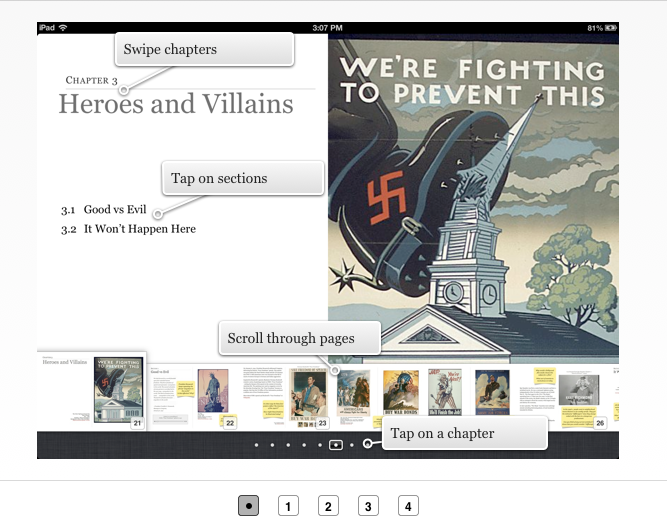
That image is a screenshot from my iPad. It’s the thumbnail view of an iBook. When you have your iBook open, do a two-fingered “pinch” to “shrink” the page. You’ll see those thumbnails at the bottom. You can swipe through the thumbnails.
Have fun,
Peter
Thanks, Peter. Your help has been much appreciated!
Dear Peter,
Thanks for all the clarifications. Ready to hit the publish button. When looking at the possible tickets, I see “image inside book file contains embedded text”as a possibility. I have not intentionally done that but I don’t want any surprises. What exactly would cause this message?
I am a first timer at iBooks Author and appreciate your help.
Thanks
Carol
Hi Carol,
Here’s the complete text for readers to get some context:
“All images should be prepared in digital format and should not contain any text. All text must be created using HTML. Embedding text in images creates issues that cause a large number of customer complaints: customers can’t use the dictionary or search the text, and in addition, the book becomes not accessible for persons using the VoiceOver feature. Therefore, books with images that contain embedded text will be rejected from sale on iBooks.”
This would only occur if you went to great lengths to put text into an image. For more on that see this article Geek to Live: Hide data in files with easy steganography tools.
Bottom line – don’t worry about the warning.
Good luck with your iBook.
Peter
Hi
Great post and lots of useful followup questions.
Does anyone know how to copy or save an image/video from an iBooks author book, and save them in a separate folder, just as the original .jpg/.png/.m4v file?
I’m manually copying/pasting images out of iBooks author into Word documents, then right clicking and choosing “Save As Picture”, but this is hellishly tedious.
We have lost a few of our original video files, so I want to copy them back out of the iBooks author, and I just can’t find a way to get them out. Any tips welcome!
Cheers
Hi Andy.
Guess you might have cracked this by now, but I was having the same issue myself.
The solution was deceptively simple… Make a copy (duplicate) of your iba file (just in case), then right-click to open it. Instead of using iBooks Author, choose to Open with ‘Archive Utility’. A new folder will be created, inside which you will find all the individual images and videoscontained within your iBook.
Hope that helps.
Andy H.
Thanks for taking the time to reply with that how-to. A great fix!
Peter
Hello,
I’ve got problems with the layout of my widgets : when I create a widget “revision” it’s perfect on my mac and then when I export it on my iPad half of the widget is cut, I can’t see the background…
I don’t know what to do, any help would be great appreciated !
Blandine.
Blandine, I’l contact you directly via email. Peter
I have figured out most of IBA and already have one book published using many of it’s features. However, while working on a children’s book by an author friend, I found your website by Googling ‘How to move pages in iBooks’… result – you can’t – I thought it was just me!
Meanwhile there a few other tips on this website which I am sure I will find useful.
Many thanks.
Hi John, Thanks for the comment. If you are making a book with flowing text, as you insert or delete graphics, the text flows accordingly. Not so bad. But I’ve been making media centered iBooks on blank pages without flowing text. iBA’s inability to move or insert pages is a drag. I learned the hard way that I better layout the pages in advance.
Cheers, Peter
Do you know if there is a way to reassign the page on which an iBook first opens? I really don’t like it when it opens to first chapter with all the thumbnails. I would much prefer it to open to the first page of the first chapter, without the clutter.
Thanks!
Hi Carolyn,
The first time a book is ever opened it will default to the intro media file at the start of the iBook. If you don’t wish to run a video or audio file there, you can always use an image file. I sometimes use a PNG image of the cover of my book in the intro media file location. Otherwise readers never will see the cover of your iBook, except as a small image in bookstore or your book collection.
When subsequently opened, the iBook should open to whatever view you were in when you last closed the book.
Hope that helps,
Peter
Using the intro media file is a good idea, but it still then opens to Chapter 1, with thumbnails when first opened. That, to me, looks clunky and uninviting – I would prefer to to open directly to the first page without thumbnails. That’s what the TOC is for.
Thanks, anyway, I appreciate the response. I was hoping there might be a workaround for it. The latest release fixed 2 issues that I was hoping for (widgets playing on page and auto play), so maybe this added control will be addressed in a later version…
can anyone suggest if it is possible to cut and paste page from an exisiting ibook file into a new book? thanks- great info here by the way!
Hi Tamlin,
You cannot cut and paste a page from one iBA file to another. Nor can you move a page within the same iBA file. While it is labor intensive, you can add a blank page in your destination file and then copy / paste each element of the page to the new location. Even widgets (with all the settings) can be copy / pasted.
That’s the story for individual pages. However you can copy / paste chapters or sections between iBA files. Or rearrange them in the same file.
Hope that helps ~ Peter
Hi Peter,
what an excellent and helpful site! I am writing a e-book which incorporates a lot of Keynote presentations. However I’ve found that IBA won’t accept some of my presentations (it seems to in write mode, but won’t show them in preview – the widget appears but with 0 slides). This seems to happen with presentations that have a different photo on each slide.
Do you have any idea if there is a way around this?
Gary
Hi Gary, that is strange. Not anything I’ve seen before. Hopefully someone out there has an answer.
Peter
Actually, if you’ve never come across this before it makes me more optimistic that it can be solved! I’ll have to experiment. If I find out what the problem is I’ll let you know. Thanks anyway for your kind consideration.
Peter,
just to let you know – I’ve found a solution! As I said, for some reason IBA wouldn’t preview some Keynote presentations. Bizarrely, if I simply take a different Keynote presentation (one that IBA has already ‘accepted’), duplicate it, delete all its slides and paste the slides from the ‘refused’ presentation in their place and then insert that into IBA… hey presto, it works!
Gary
Hello Peter,
Please help me. I used iBooks Author to create a training course. I’ve included some hyperlinks, but when I click on a hyperlink, I don’t see any way of returning back to the iBook. What’s the secret? Thank you.
Hi Budd, use a 4 finger swipe to move back to iBooks. You might need to set up iPad for that gesture in settings. Cheers, Peter
That worked!! Thank you! In addition to this excellent site have you written a book or some other reference guide for working with iBooks Author?
I have a free iBook, website and video tutorials here: Get Started with iBA
Sorry to bother you again, Peter, but I have another question. When I preview my book on my MacBook the Keynote presentations play fine. However, when I preview on my iPad the transition ‘Flop’ jars (basically, once the page-turn effect from Page 1 to Page 2 is completed, Page 1 is still the visible page for a split second).
I wonder if I’ll have to change transition, or whether the MacBook preview is more indicative of how the published book will eventually work, even on iPads?
Gary
Hi Gary, I find that the iPad preview is more reliable than the desktop preview. The iPad will tell you if you need to tinker with the transitions. I don’t think all of the transitions available in Keynote work as well in iBooks Author.
Peter
And now I’m getting the dreaded Mac multi-colored spinning ball come up with every single click. It’ll take me hours just to make a few changes at this rate! I’m afraid I’m beginning to hate i-Books Author!
Thanks very much for the tip Peter. I’ll try a different transition.
Peter, you don’t happen to know about iTunes Producer ‘territory rights and pricing’ by any chance? I’ve tried and tried to get past this page, but everytime I get the message “pricing error while fetching mass pricing information”. I’ve tried inserting just one territory, but get the same message. Looking on the web it seems a great many people have this problem and no solution can be found. And yet many people, including yourself, have succeeded! Do you know anything about this problem?
Peter, please ignore my last question – the ‘territory rights and pricing’ page worked fine today, after creating hours of problems for me yesterday!
My book has been submitted now. Fingers crossed!
I’d like to thank you for your help and advice and, above all, your excellent site. You’ve been an invaluable aid.
Best wishes,
Gary
Gary, Glad that all is well and your iBook is in the works.(though the pre-Christmas crunch may take them some time for approval) Let me know when it’s available ~ Peter
Hi Peter,
My book Interactive English Grammar – Communicative Activities for the EFL classroom is now available. Yay! With no small thanks to your kind self.
If you’d like a freebie promo code copy send me an email.
Gary Christopher Friel
Hi Peter,
I am using iBooks Author to put our class handouts on iPads. When I publish to the Apple Store, it’s available to anyone. However our handouts have confidential/HIPAA info in them, and I don’t want anyone else to see that. Is there a way to publish a book “privately” so only the employees at my company have access to it?
Thank you.
Hi Budd,
Yes there is. The iBooks Author terms of use state that iBooks offered “for sale” can only be distributed via iTunes. However “free” iBooks can be distributed via any channel and do not need to appear on iTunes. So you can transfer your class handouts to iPads (or Mac desktops) “privately” via your network / content management system without posting them to iTunes.
Cheers,
Peter
Ok, that’s great thank you!
Hi, Peter,
Is there a way to specify a video as being of type ‘inline’?
~ Keri
Hi Keri,
Yes. With video and other objects you can choose Inline. floating or anchored. Here’s a video that covers that.
Enjoy,
Peter
Hi and thanks for your post about iBook Author. It is very helpful, some of the issues I have already noticed. I can upload mp4, though.
I am in the process of creating mine and I am encountering a few problems which I don’t find the answer for.
My program was downloaded in the German iStore and has all text in German. I write the book in English and now there is no way to change the language ( I tried it in 2 places, also the inspector, which then left the window in-active and nothing changed)
So I have the spell check for German on – ehivh highlights every word – and Instead of “Chapter” I have the German expression.
The other problem: In the table of contents NOTHING appears /saiys: without title, although I have inserted it on the page) and I cannot manually insert the titles.
On the widget my LAYOUT is totally inactive, cannot click on anything since I tried to change the language, rebooting the program didn’t help.
Any idea? Or who I could ask?
Thank you
I did not realize the program came in different languages. Can you get a copy of the English version?
Re “Here’s the catch – you can only create a bookmark from body text – you cannot bookmark text in a text box.”
Create the bookmark in body text, then cut and paste it into your text box / caption. Squirrely but so far it works for me. Same for links.
Thanks, super useful post that I’ve referred to more than once!
Great hack!
Hey Peter
Great information! Can you tell me how you divide your books into several books to help with memory. I can’t see where I can link one file to another seamlessly. Thanks for your help.
You can copy and paste chapters or sections of chapters from one iBooks Author file to another. So if you had one “large” iBA project you could create a new file using the same template and “move” some of the book to another. That would result in two (or more) iBooks with smaller file size.
Note: You cannot copy and paste individual pages. It must be done at chapter or section level.
Peter,
I have been working on a book with a lot of images, charts, and shapes. Recently I exported it and found that many of the shapes where shifted down randomly on the page. I have tried grouping the images to a table but all that did was make it so they all shifted down the same amount. I was wondering if you had any ideas as to why that might be happening?
Thanks,
Ryan
Hi Ryan, Sound strange. Could you send me a iBA file copy of the pages that is happening on? I can take a look. If that sounds good, I’ll send you contact info.
Hi Peter,
I have spent days trying to figure out how to save my first chapter as a saved layout to base the rest of the chapters on. There is a red button saying “Apply” that once came up in the layout pane, but I can’t find it again. Do you know what I am doing wrong?
Thanks,
Gordon
Try using File / Save as Template. It will auto save to “My Templates” and that new style will appear as a new choice in “New from Template Chooser.”
Remember another tool for replicating the look of elements in your iBook is the Copy Style / Paste Style. This can be used to replicate the styling for a Widget, image, text. If you customize your iBA toolbar you can add those two buttons to the toolbar for quick access.
Hope that helps
Hi,
Thank you for being so generous with your time and advice – you have clearly helped many people out with the headache of creating an ebook.
I have been reading through your comments and the content on your great site but I am stuck – I cannot seem to work out how to change the style of a template and yet, that sounds so simple. I must be missing something.. Can you please help as I am now at a loss.
The general advice is simply to change the text within the Layout pane and click “apply changes” – but I do not get that button and so I have simply tried to save the edited file and nothing within my written ‘book’ itself changes.
I have re-booted, I have saved as template and reopened the new template but it remains the same within the book itself – that is, when I click on the text in my book, for example the “Chapter” text it simply reverts to the original /old template/ layout style.
I am absolutely at a loss at what to do. Can you advise? Am I missing something? I did see a comment somewhere about selecting a box within the layout pane inspector panel; but there is nothing there either for me to click..?
I shall keep trying but in the mean time any advice would be very gratefully received!
Thank you so much again, Mr. Peter Pappas..
Kind regards,
Jane
I have just worked it out ! I was working in full screen and was not seeing the styles panel drawer – only the styles panel ( which is different).. So easy – by simply working with iAuthor at a smaller size the styles panel drawer suddenly appeared as did the red triangle and I was able to easily apply the new style to the whole document. Phew.
So glad to hear you worked it out!