I’m a recovering PowerPoint user that’s been using Apple Keynote for my presentations for about a year. I find it much friendlier to graphics and media. It took me a while to figure out how to create B/W six slide / page handouts that I could easily PDF to clients. Thought I’d pass it along. If you have any more suggestions, let me know!
PS. I use the Mac native pdf creation tools (too cheap to buy Adobe Acrobat for my Mac). For this illustration I’m working with a 108 slide Keynote presentation with lots of graphics.
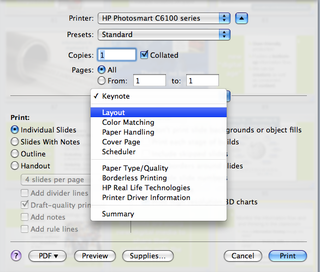
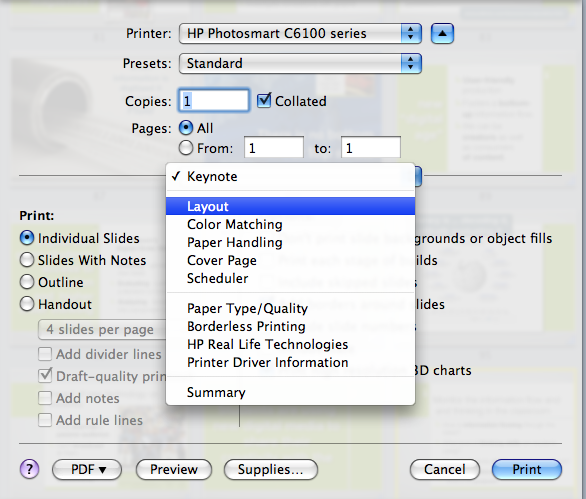
Step 1: I open my Keynote handout presentation. I select File/ Print. Keynote defaults to Keynote in drop down box – I select “Layout.”
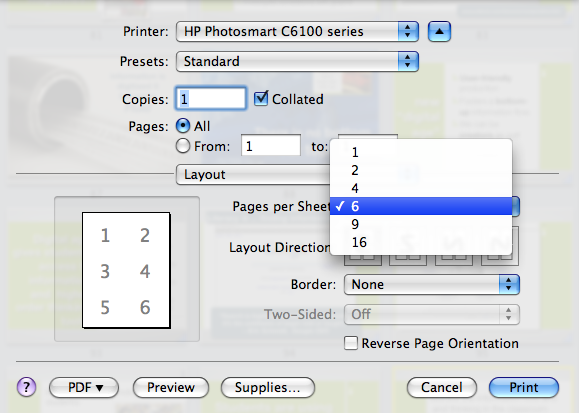
Step 2: In the “Pages Per Sheet” box, I choose 6. Note: This “Pages per Sheet” choice doesn’t appear on the default “Keynote” print screen.
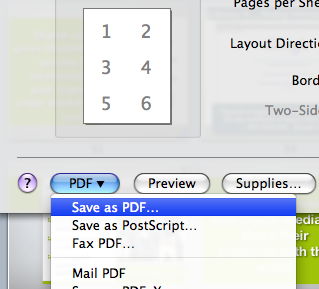
Step 3: I click “PDF” button in lower left and chose “Save as PDF” This gives me a color pdf – 6 slides per page. In the sample I’m working on, I have now created a 16 MB PDF file.
Now my goal is to convert to gray scale (for the client to photocopy) and to reduce the file size.
Step 4: Open the newly created PDF handout in Apple Preview. I choose “File/Save As… “
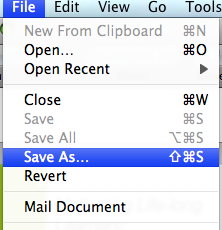
In the “Quartz Filter” selection box, I choose “Gray Tone.” I save that new gray tone PDF. Nice looking handout, but I have greatly increased the file size. (from 16 to 103 MB). Too big to send to the client!
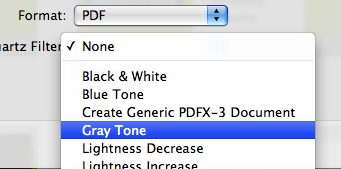
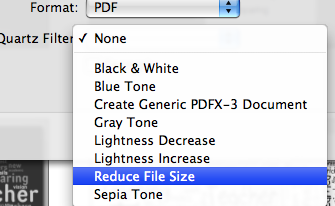
Step 5: I open the newly created Gray Tone version of the pdf in Preview and do another “Save As…” Just like in step 4. This time in the “Quartz Filter” selection box, I choose “Reduce File Size.” That creates a new PDF with file size reduced from 103 MB to 5.7 MB (Even smaller than 16 MB color PDF I created in step 3)
Since I am usually sending of lots of handouts to multiple clients. I have another blog devoted to distributing them. That way I can email a link to my “Handout Blog” and let them deal with downloads at their end.
Hope this helps!

Peter,
Many thanks for you tips!
I find myself reverting to Powerpoint when I have to produce professional hand-outs, espacially for binders of course material with notes pages.
I did not discover any options in Keynote to set page margins (!), header and footers the size of the slide versus the notes area, a.o. for notes pages.
Also, I found that when choosing the option to remove backgrounds, light (white) objects are not printed black and disappear.
Did you find any work-arounds for these limitations of KeyNote w.r.t producing notes pages? I.e. exporting the slides + notes to Pages ????
Erwin
Hi Erwin,
Thanks for your reply. Keynote is far from perfect. I have not found any work arounds for the issues you raise. You can make the Keynote handout as I detail above and then open it in Adobe Acrobat and add headers / footers. But that takes more software. If you come up with any new ideas let me know.
In the meantime there’s new version of Keynote just out – be interesting to see if any of these issues are addressed.
Cheers,
Peter
Peter, I tried unsuccessfully to do what you said. In Layout I’m given the choice for how many pages per sheet, but it does not show a picture of them on the page as yours does. I only see one picture in the upper lefthand corner of the page, correctly sized for the others to appear, but they don’t. I print the sheet and only the one handout prints. Help!
Robert
Hi Robert,
You’re also given a choice of:
Pages: All
Pages: 1 – whatever
Do you have “Pages All” checked?
How do you create headers and footers on the handout sheets not the individual slides?
I haven’t found a way to do that in Keynote. You’ll need a PDF writing app.
Thanks so much for the awesome tips. I too have been using Keynote for about a year and am still learning so many things. I was really stuck on this until I stumbled upon this. Thanks! 🙂
Dawn,
Glad to be of help.
Cheers ~ Peter
Thank you very much, this is a great tip! I’m using a very old version of Keynote and this worked well. I agree that Keynote is very friendly in its ease of use for graphics, etc., but the handouts feature of Powerpoint is sorely missed here. But this workaround makes for a nice workflow.
Thanks again
Hi Mark,
Glad I could be of help ~ Cheers, Peter
Brilliant!!
So glad I found you–what a treasure trove of awesome info.
–Meg
Thanks for the tips! I’m making a nervous transition from PC and Powerpoint to Mac and Keynote and your hints are helping me along the way! I think I will survive.
Sarah,
Glad to hear I could help. Be brave. You’ll like Mac / Keynote.
Cheers,
Peter
This information is awesome! Thanks so much for posting – you are my go to website to make the PDFs from Keynote! Thank-you – Thank-you Thank-you!
Claudia, Glad to be of help – Peter
Hi Peter,
I have used this little pearl of wisdom many times to make nice grey tone printouts from my presentations. Thank you so much.
This time, however I face a new problem. For whatever reason, when I grey-tone the pages, certain parts (some embedded images etc) remain in full colour. This is still the case even after reducing the file size. I end up with a largely grey-toned handout with several colour images.
I though it might just be a memory cache problem, but it doesn’t appear to be.
Any ideas?
Thanks,
Simon
Simon,
Glad to have been of help in the past, but this problem stumps me.
I’ve stopped printing out handouts. I usually create a Google site for each presentation with links for more info and then add a PDF handout that they can view. I leave that in color. Easier than printing and ultimately more useful to attendees. Here’s a sample.
BTW – Google sites can be cloned so I can readily customize new ones without starting from scratch.
Cheers,
Peter
Thanks Peter. I’ve managed to get a +60Mb handout PDF down to around 2Mb (and still in colour) thanks to your article. I’m now wondering if this can be scripted/automated.
Ian, Glad to hear it worked out. I’m not a script guy, but I’ll bet someone could figure it out.
Cheers, Peter
Where is the option to create a workbook in keynote?
Thanks, Robert
Not sure what you mean by “workbook”